






Odoo is a highly flexible, intuitive and innovative tool that is adapted to your needs in terms of business management. real-time accounting. That's why closing your accounts in Odoo is a very simple process, which we've broken down into 12 steps below.
- Ensure that all invoices are accounted for
From the accounting dashboard, you can easily find customer or supplier invoices that have not yet been validated (see screenshot below). After the necessary checks, these invoices are posted en masse, regardless of their number.
- Perform your bank reconciliation
As a key internal control tool in the closing process, bank reconciliation enables the bank statement to be cross-referenced with the accounts, thanks to a highly advanced lettering proposal. The reconciliation engine combines amounts, third parties and labels, with the option of searching by several criteria. It is also possible to view the details of accounting entries, to allocate lines on the statement that have not yet been booked, or to make annotations on suspense items.
.png "Image2-(1).png")
- Make inventory valuation entries
Avec Odoo les écritures de stocks sont passées automatiquement en comptabilité si la configuration « inventaire permanent » est activée : tout mouvement de stock (entrée, sortie, inventaire) génère une écriture de variation de stock selon les règles FIFO ou CUMP. Après l’inventaire annuel des stocks, les écarts sont également comptabilisés lorsque le stock final physique est saisi. Les comptes de stock sont automatiquement mis à jour et correspondront aux stocks physiques.
If the manual valuation method is configured, final stock is entered manually in Odoo. In this case, it is important to compare the stock valuation with the valuated and validated physical inventory.
- Check depreciation of fixed assets
Depreciation is fully automated in Odoo. From the entry of fixed asset supplier invoices, individual asset records are generated with their depreciation schedule. Depreciation entries are automatically booked according to the periodicity configured (monthly, annually, etc.). .png)
When closing the accounts, simply check that depreciation has been booked for the period, and print out the depreciation table.
- Managing the separation of fiscal years - Cut-off
«The principle of separation of accounting periods stipulates that accounting periods are independent of each other. Thus, each accounting period must contain all the elements that concern it, but only the elements that concern it».
With Odoo, cut-off entries for overlapping customer or supplier invoices from 2 different periods can be made using an input mask, after entering the recognition date, the percentage of the amount and the accounting account. These entries are posted as the invoices are received.
.png "Image4-(1).png")
At year-end, prepaid expenses and deferred income accounts are just edited for control purposes.
- Record provisions for invoices not yet received
From approved and received purchase orders, you can generate provision entries for supplier invoices not yet received with a single click, and at the same time program the date of their reversal (see screenshot below).
.png "Image5-(2).png")
- Recognize foreign exchange gains and losses
For companies that carry out transactions in foreign currencies, Odoo automatically makes exchange rate difference entries when the customer or supplier settles, depending on the direction of the transactions (gain or loss). Based on conversion rates retrieved in Odoo from websites (e.g. xe.com). .png)
Exchange rate fluctuations generate unrealized exchange gains or losses, which must be recognized at the time of closing with the rate on the closing date. This screen allows you to simulate and make the adjustment entry.
- Process your tax transactions
Odoo Accounting allows you to edit a tax report at the end of a period, and automatically enter the tax declaration.
.png "Image8-(2).png")
- Letter your accounts
Easily letter all third-party accounts to a «T», with automatic lettering suggestions based on third parties, accounts, amounts, etc. 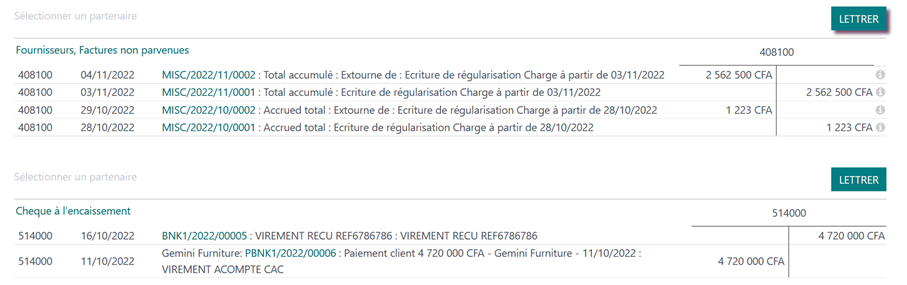
- Review and annotate your accounts
Account review is made easier in Odoo by an analysis system based on several axes of your choice. You don't need to print out the statements each time; you can use the analysis tools directly, with the option of making annotations without leaving Odoo.
If account allocation errors are detected, they can be corrected en masse on the various lines concerned, while maintaining traceability (audit trail).
You can also mark certain accounting vouchers as ‘To be verified’ if further checks are required, or if the operation requires special validation. A list of these transactions can then be displayed, based on the filters for this criterion.
- Close periods accountants
La date de verrouillage dans Odoo correspond à la date de clôture. Il permet d’interdire de comptabiliser des écritures comptables sur une période déjà revue et clôturée.
There are two levels of access: you can block access to entries for accountants, and give access to one or more managers. .png)
- Retained earnings
Odoo does not close or open accounting periods, nor does it generate entries in retained earnings accounts.
Retained earnings« is automated: the profit for the year is automatically »allocated‘ to an account set up for this purpose (account type). The previous year's profit is allocated when the trial balance is produced, by entering the period start and end dates.
Conclusion
Closing a company's books can be made easier by real-time accounting and the use of accounting tools and software such as Odoo, which facilitate the processing of closing operations and the internal control of financial information.


